
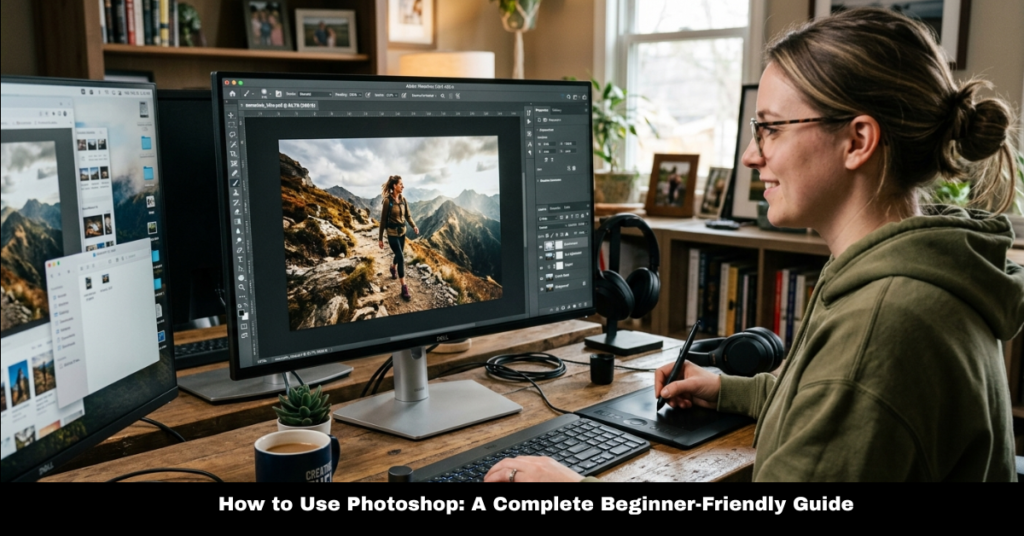

If you’ve ever wondered how to use Photoshop, you’re not alone. Adobe Photoshop is one of the most powerful tools for photo editing, graphic design, and AI-powered creativity—but it can feel overwhelming when you’re just starting out.
In this guide, we’ll break down how to use Photoshop to edit photos, enhance images, and explore modern features like Photoshop AI generative fill in a simple, practical way. Whether you’re a beginner or someone trying to improve your design skills, this article will help you understand everything step by step.
Let’s make Photoshop easy, practical, and actually fun to learn.
What is Photoshop and Why is it So Popular?
Before learning how to use Photoshop, it’s important to understand what makes it so powerful.
Adobe Photoshop is a professional image editing software used for:
- Photo retouching and enhancement
- Graphic design and branding
- Digital art creation
- AI-powered image generation
- Social media content design
Today, with AI features, learning how to use Photoshop AI has become even more valuable for creators, marketers, and designers.
How to Use Photoshop (Step-by-Step Basics)
If you’re starting from zero, here’s a simple workflow to follow.
1. Opening and Importing Images
To begin learning how to use Photoshop to edit photos, you first need to open an image:
- Click File > Open
- Select your image
- Start editing in the workspace
You can also drag and drop images directly into Photoshop.
2. Understanding the Workspace
When you open Photoshop, you’ll see:
- Toolbar (left side)
- Layers panel (right side)
- Canvas (center area)
Layers are the most important part of learning how to use Photoshop to enhance photos, because every edit happens on a separate layer.
3. Basic Editing Tools
Some essential tools include:
- Crop Tool (resize images)
- Brush Tool (paint or retouch)
- Healing Brush (remove imperfections)
- Move Tool (reposition elements)
- Text Tool (add typography)
Mastering these tools is the foundation of learn how to use Photoshop effectively.
How to Use Photoshop to Edit Photos Like a Pro
Photo editing is one of the most common uses of Photoshop.
Adjust Brightness, Contrast & Colors
Go to:
- Image > Adjustments > Brightness/Contrast
- Image > Adjustments > Hue/Saturation
This helps improve dull or poorly lit images.
Remove Unwanted Objects
To understand how to use Photoshop to edit photos, try:
- Spot Healing Brush Tool
- Clone Stamp Tool
These tools help remove unwanted objects, blemishes, or distractions.
Sharpen Images
If your image looks blurry, here’s how to use Photoshop AI to sharpen image:
- Go to Filter > Sharpen
- Use “Smart Sharpen” for better control
This improves clarity and detail instantly.
How to Use Photoshop AI Features (Modern Editing)
Photoshop has evolved with powerful AI tools that save time and improve creativity.
What is Photoshop AI?
Learning how to use Photoshop AI means using smart tools that automate editing tasks like:
- Object removal
- Image generation
- Background editing
- Photo enhancement
How to Use Photoshop AI Generative Fill
One of the most popular tools today is how to use Photoshop generative fill.
Steps:
- Select an area using Lasso Tool
- Click “Generative Fill”
- Type a prompt (e.g., “sunset sky”)
- Let AI generate results
This is also known as how to use Photoshop AI generative fill and it’s a game changer for designers.
How to Use Photoshop Generative AI Tool
The broader system is called how to use Photoshop generative ai tool, which allows you to:
- Extend images beyond borders
- Add missing objects
- Replace backgrounds
- Create realistic scenes
This feature is especially useful for marketing, content creation, and social media visuals.
How to Use Photoshop AI to Create Images
You can even generate new visuals:
- Open Generative Fill
- Type a description
- Let AI build the image
This is commonly searched as how to use Photoshop AI to create images and is perfect for creative projects.
How to Use Photoshop AI to Enhance Photos
AI can also automatically improve image quality:
- Go to Filter > Neural Filters
- Use “Enhance Photo” options
This helps with how to use Photoshop AI to enhance photos for sharper and more professional results.
How to Use Photoshop AI to Increase Resolution
If your image is low quality:
- Open Neural Filters
- Select Super Resolution
- Apply enhancement
This is how you handle how to use Photoshop AI to increase resolution without losing quality.
How to Use Photoshop AI Generative Fill on iPad
If you use an iPad:
- Open Photoshop app
- Select area with Apple Pencil
- Tap Generative Fill
- Enter prompt
This mobile workflow makes how to use Photoshop AI generative fill on iPad easy and portable.
How to Use Photoshop for Upscaling and Enhancement
Upscale Images Without Losing Quality
To learn how to use Photoshop to upscale image:
- Use Image Size option
- Enable “Preserve Details 2.0”
- Increase resolution carefully
This keeps images sharp even when enlarged.
Enhance Overall Photo Quality
For how to use Photoshop to enhance photos, try:
- Auto Tone / Auto Color
- Camera Raw Filter
- Noise Reduction
These tools make images look more professional instantly.
How to Use Photoshop Actions (Time-Saving Trick)
Photoshop Actions help automate tasks.
Steps:
- Open Actions Panel
- Click “Create New Action”
- Record your edits
- Play action anytime
This is the easiest way to understand how to use Photoshop actions for repetitive work.
How to Use Photoshop for Free (Legally)
Many people search how to use Photoshop for free. Here are real options:
- Free trial from Adobe
- Photoshop Web (limited features)
- Adobe Express (basic editing)
These allow beginners to explore Photoshop without immediate cost.
Common Mistakes Beginners Should Avoid
When learning how to use Photoshop, avoid:
- Editing on a single layer
- Overusing filters
- Ignoring image resolution
- Not saving editable PSD files
Good habits make your workflow smoother.
FAQs About How to Use Photoshop
1. How to use Photoshop for beginners?
Start with basic tools like crop, brush, and layers. Practice simple edits daily.
2. How to use Photoshop AI generative fill?
Select an area, click Generative Fill, and type a prompt for AI-generated results.
3. Is Photoshop difficult to learn?
It can feel complex at first, but basic tools are easy to understand with practice.
4. Can I use Photoshop on mobile or iPad?
Yes, Photoshop has mobile and iPad versions with AI features like generative fill.
5. How to use Photoshop to edit photos professionally?
Use layers, adjustment tools, retouching brushes, and color correction features.
Conclusion
Learning how to use Photoshop doesn’t have to be overwhelming. Once you understand the basics—like layers, tools, and adjustments—you can quickly move into advanced features like Photoshop AI generative fill, image upscaling, and photo enhancement.
Whether you want to design graphics, edit photos, or explore AI creativity, Photoshop gives you endless possibilities.
Start small, practice daily, and soon you’ll confidently master how to use Photoshop to edit photos and create professional-level visuals.